Overview
The Community folder is where packages not purchased through the Microsoft Flight Simulator Marketplace are installed. The Official folder contains all packages downloaded directly from the Marketplace.
This guide covers MSFS 2020 and 2024, and assumes a basic familiarity with navigating in File Explorer.
If you purchased a product through Orbx or directly from the MSFS Marketplace, you typically won’t need to worry about these folders. However, if you bought an add-on from a seller without a client application (for example, ThresholdX), or if you need to install a patch manually, you’ll need to locate them.
Default Folders
The Official folder is located in the same directory as the Community folder. Their default paths are:
MSFS 2020:
%LocalAppData%\Packages\Microsoft.FlightSimulator_8wekyb3d8bbwe\LocalCache\Packages
Click to copy
MSFS 2024:
%LocalAppData%\Packages\Microsoft.Limitless_8wekyb3d8bbwe\LocalCache\Packages
Click to copy
Navigating in File Explorer
The easiest way to reach these folders is:
- Open File Explorer
- Click the Address Bar at the top of the window (this shows the current folder path)
- Paste the path above and press Enter
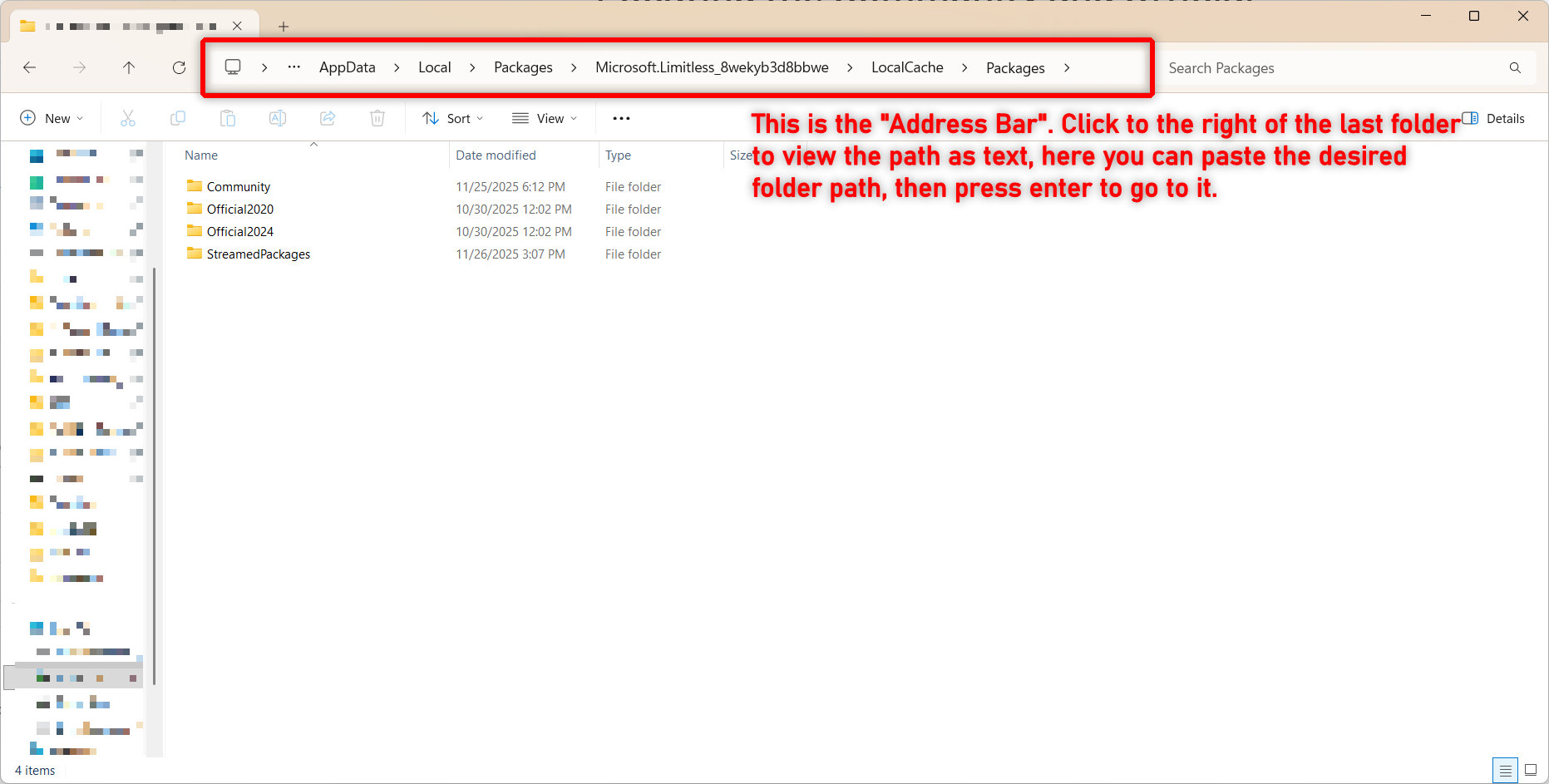
For most users, this method works fine. However, if you changed the installation location of MSFS, the Packages folder, and therefore the Community and Official folders, may be in a different location. The following steps show how to find them in MSFS 2020 and MSFS 2024.
MSFS 2020
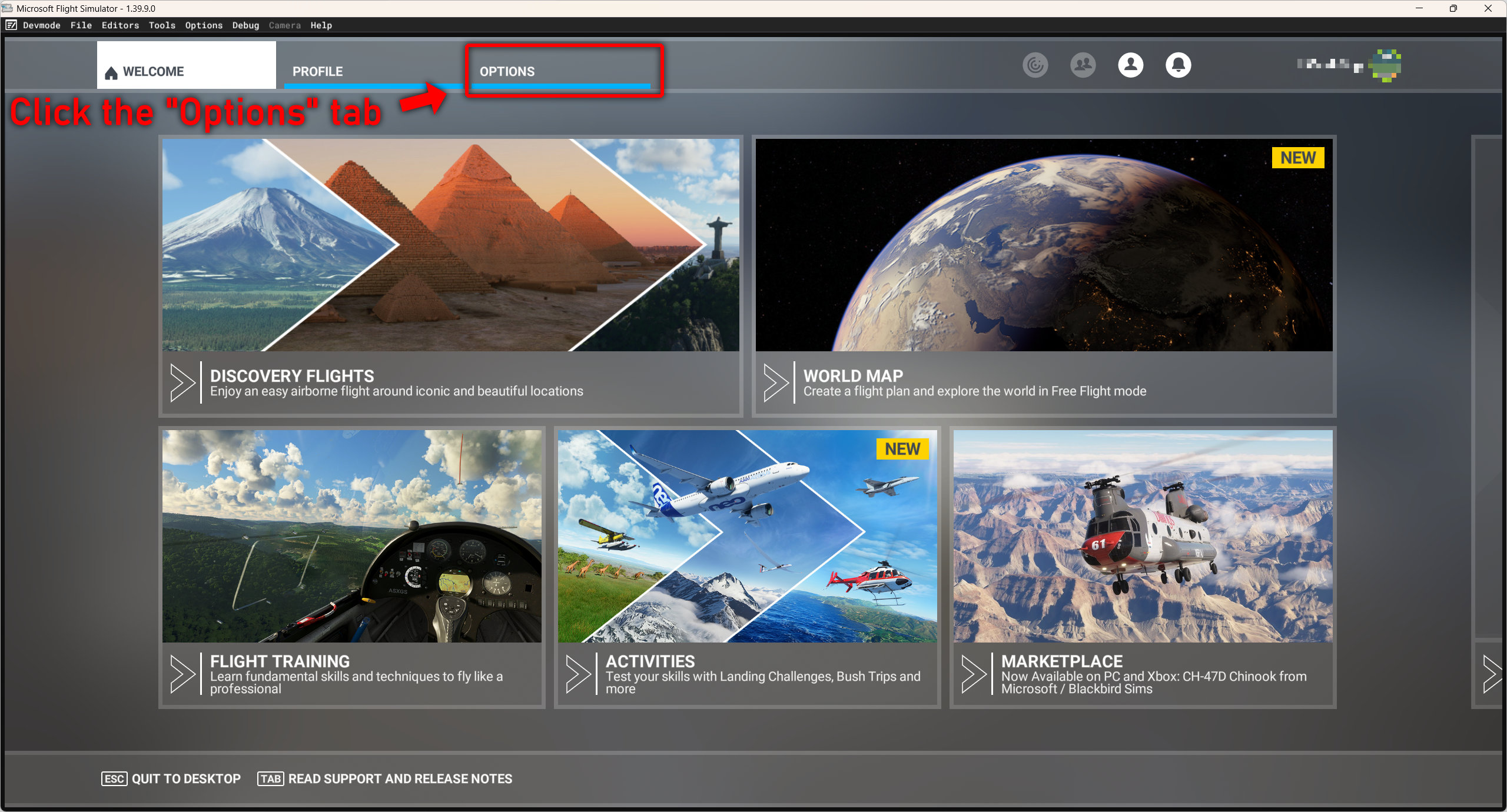
First, start MSFS 2020. Once loaded, click the "Options" tab.
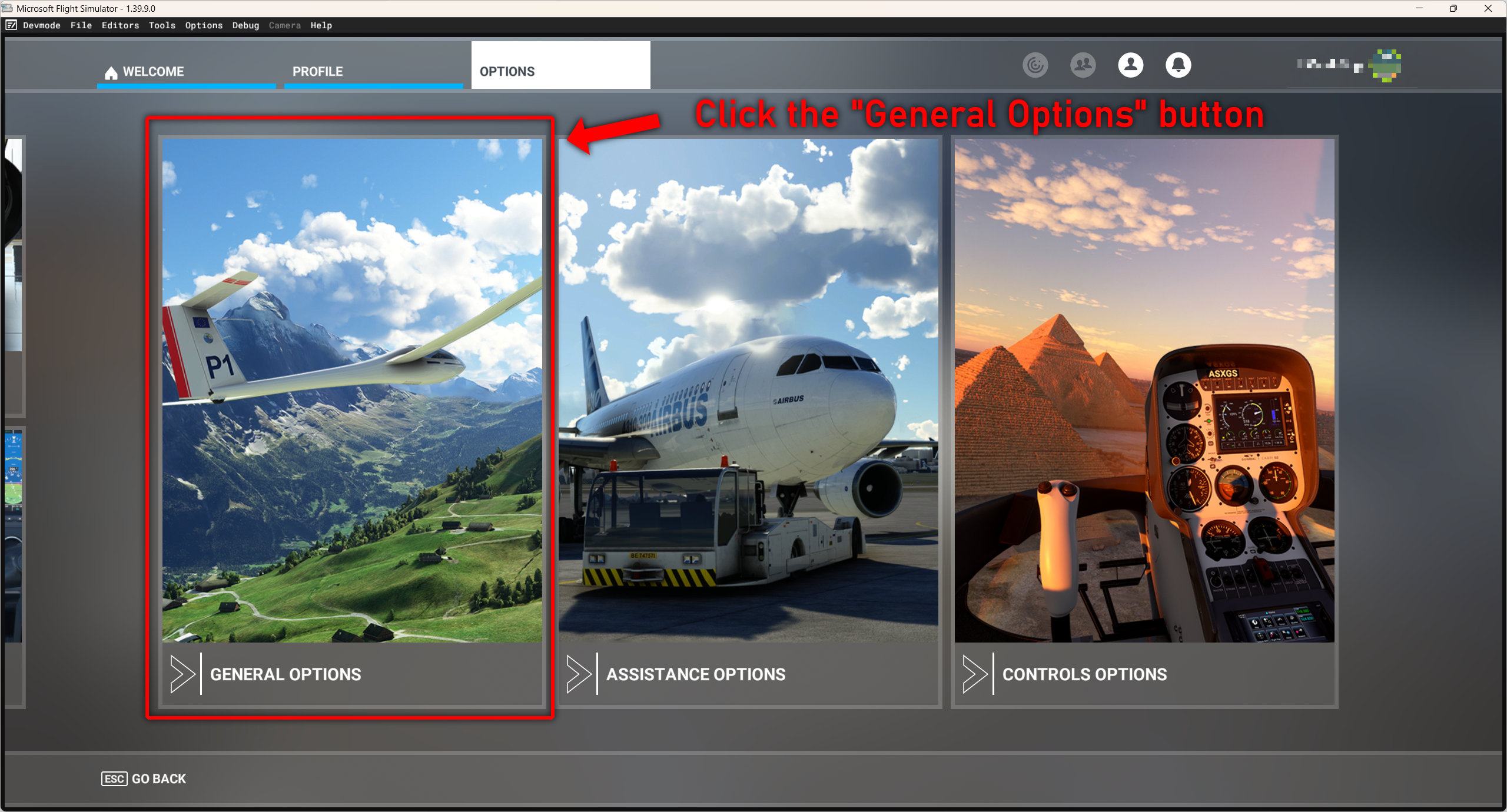
Once loaded, click the "General Options" tab.
Next, click the "Data" tab and scroll down. Under "Rolling Cache Settings" you should see a "Rolling Cache Path" option. Click the path selector on the right.
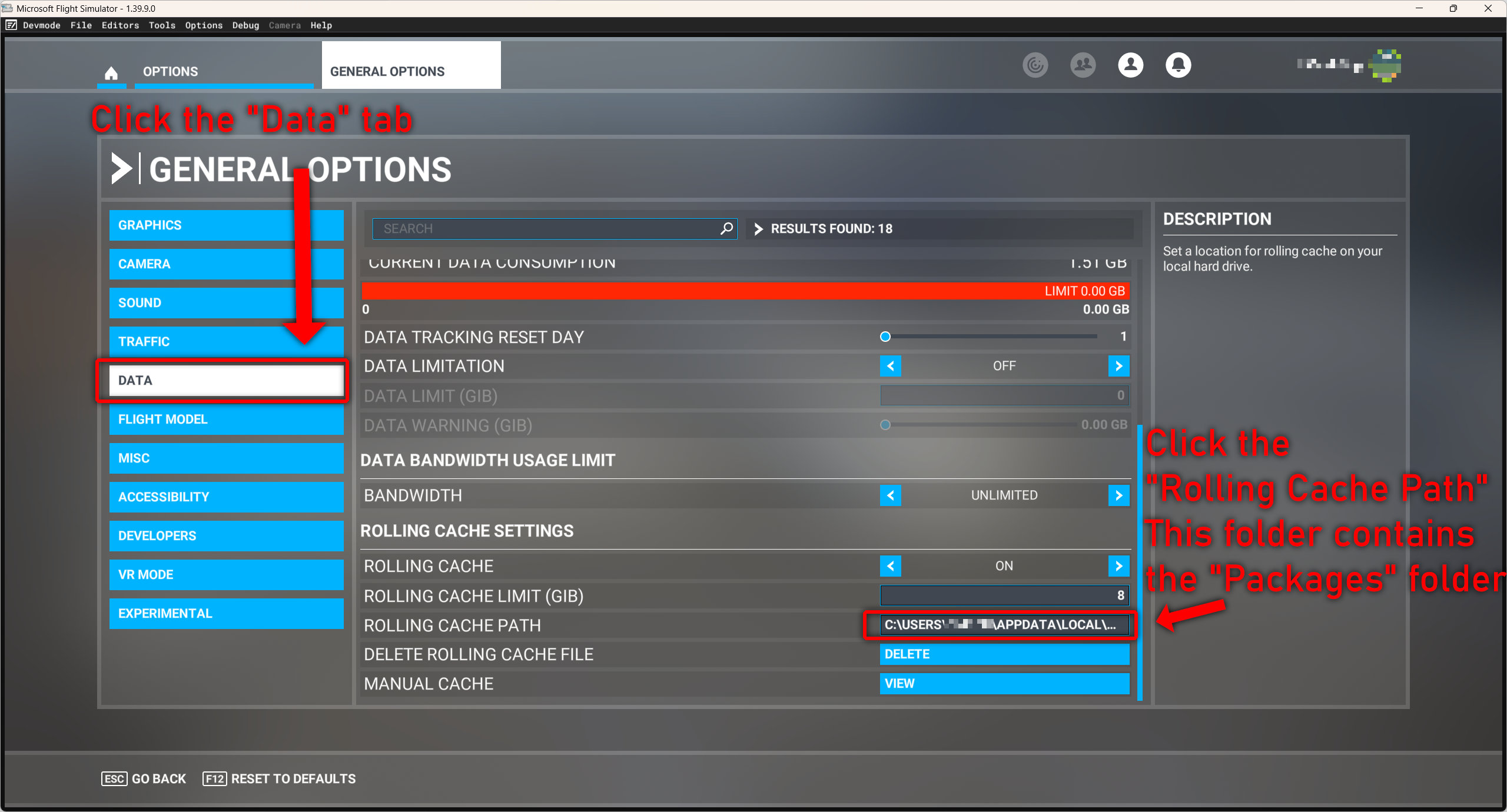
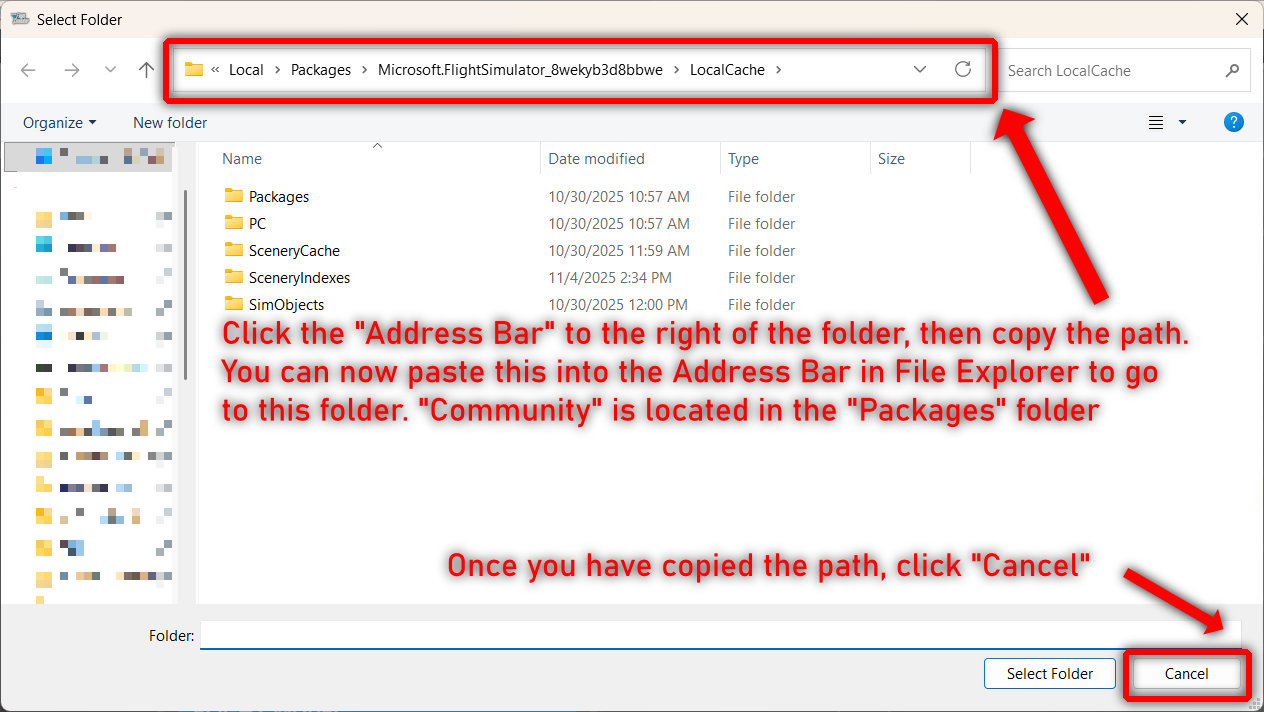
This opens a File Explorer window. At the top, the address bar will display the location of your MSFS folder. Copy this path and navigate to it in File Explorer. The Community and Official folders are inside Packages.
⚠️ Important: After copying the path, click Cancel. Do not click Select Folder, as this may change your MSFS installation location.
MSFS 2024
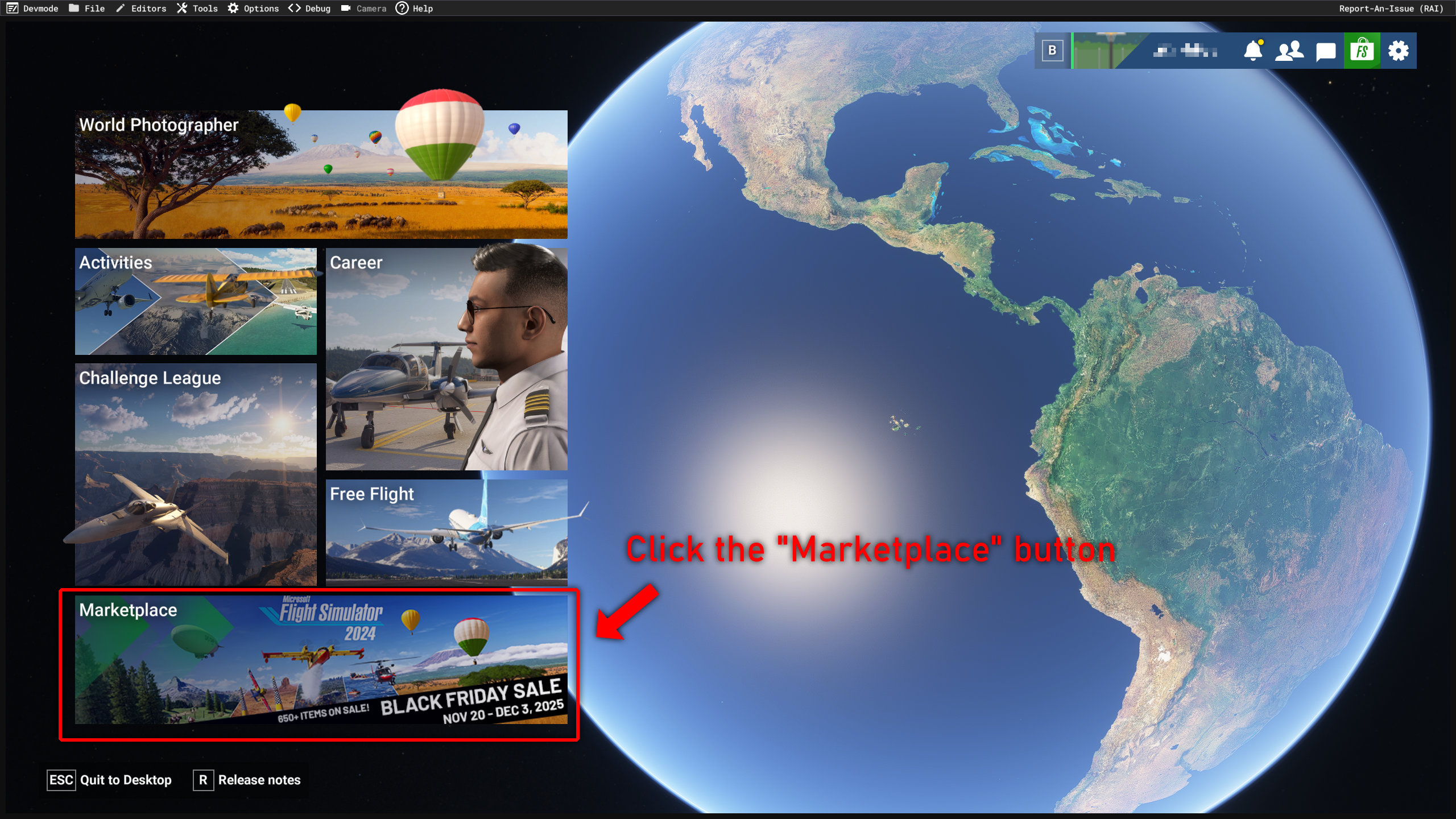
First, open MSFS 2024. Once at the main menu, click "Marketplace".
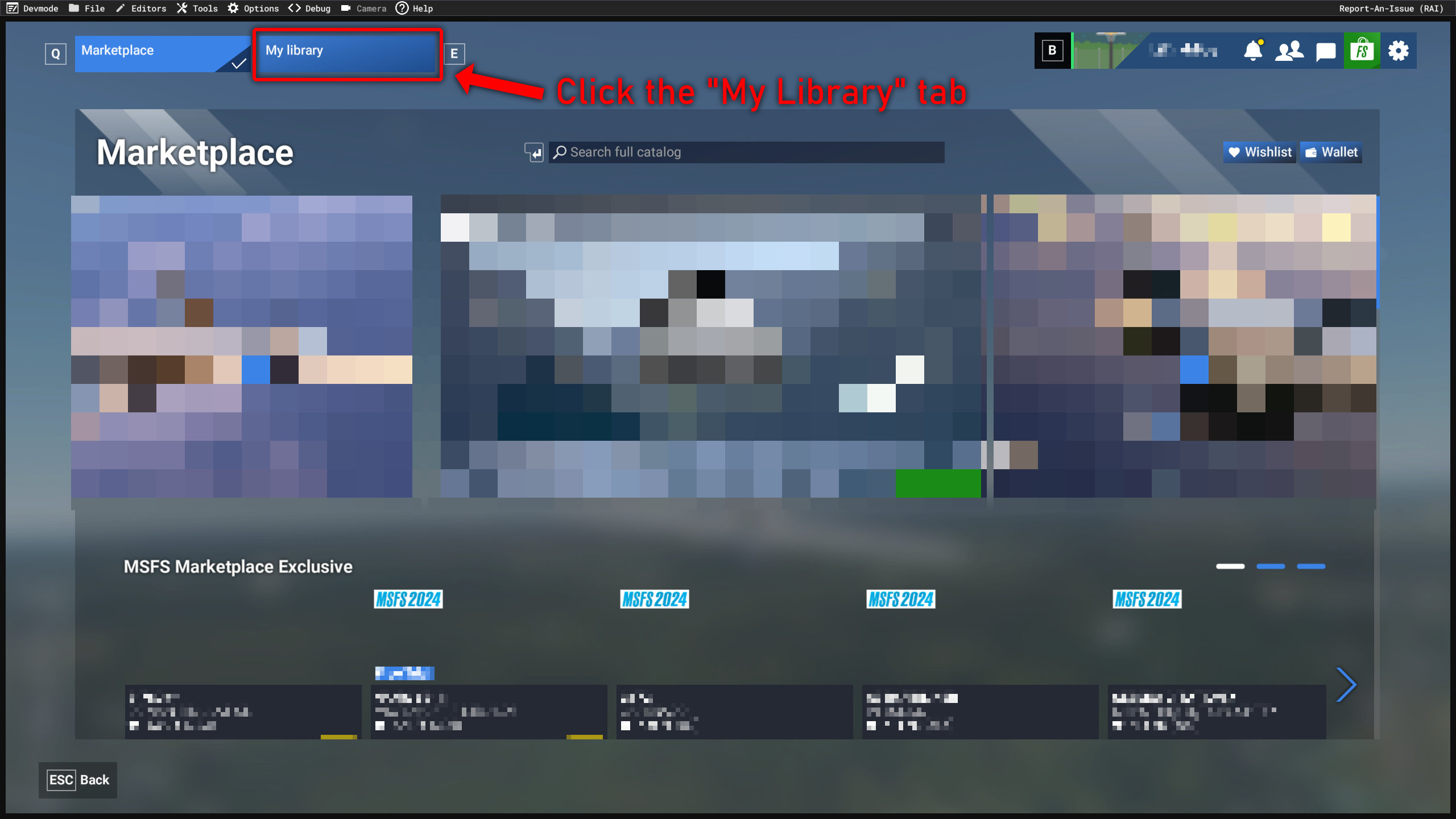
Next, click the "My Library" tab.
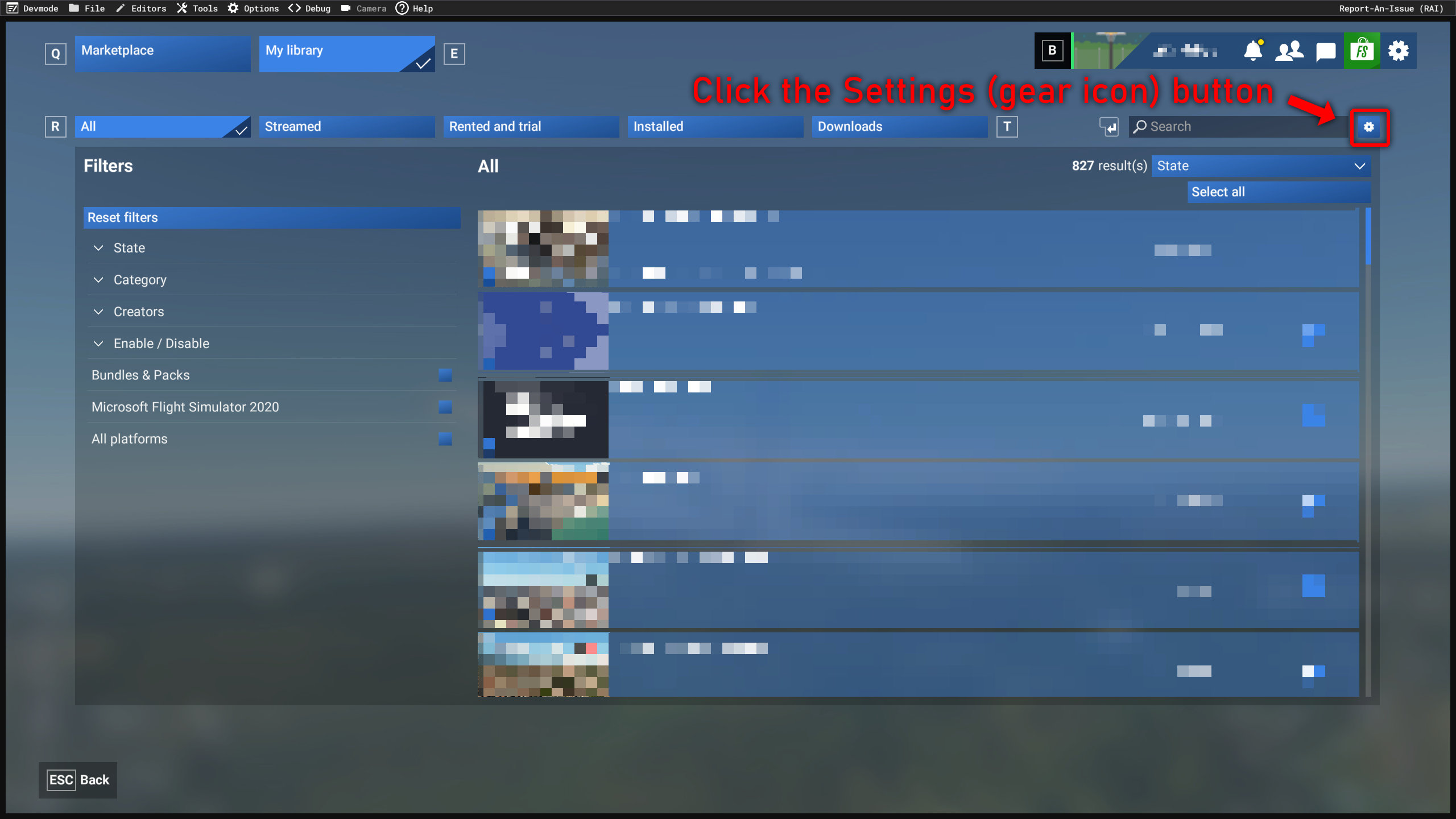
Next, click the Settings button (the gear icon) on the right, just above the package list.
A settings window will appear, showing the install path of MSFS 2024. Click the folder icon next to this path to open it directly in File Explorer.
I hope this article has been helpful! If you are still having trouble locating the appropriate folders, or you have any other issues with my products, please don't hesitate to reach out on the Contact page!